The ad factoryGuide
Trim and join ad clips with FFmpeg without drift
Short answer
For precise ad cuts, decode and trim the chosen video and audio ranges, reset their timestamps, and join compatible streams. Stream copying skips reencoding but can preserve material around a seek point. Check the actual boundary frames, synchronized sound, and total duration after rendering; a successful command is only the beginning.
Write the cut before writing the command
A technically successful join can still cut through a word or begin on the wrong frame. Record source IDs and complete action ranges before writing the FFmpeg command, then choose a trimming route suited to the required boundary. Reset timestamps, prepare corresponding streams, and verify the rendered joins so the accepted output matches the edit recipe.
The ai ugc ads workflow guide places this assembly step after footage selection and before final review. Check that every requested range exists in its source. If the recipe asks for six seconds from a source that ends after four, resolve that shortage before rendering. A held final frame or an unexpectedly short output is a poor substitute for an explicit editorial decision.
Choose precise trimming or stream copying
The FFmpeg: command-line documentation distinguishes seeking during transcoding from seeking with stream copy. Input seeking can land at a preceding seek point; with accurate seeking enabled during transcoding, excess material is decoded and discarded. Stream copy can preserve that excess. It avoids reencoding, but the speed benefit should not be mistaken for a promise that every requested cut lands exactly where the recipe specifies.
For a precise dialogue or action boundary, use a route that decodes and trims the selected interval. Keep stream copying for cases whose compatibility and boundary behavior you have verified. Record which route produced the accepted file. That distinction matters when a later editor repeats the command against a new source with different encoded boundaries or stream properties.
Reset the trimmed segment timestamps
The FFmpeg: filters documentation states that trim keeps a continuous part of the input and does not reset timestamps. Its end time identifies the first frame to drop. atrim handles the audio interval, while setpts and asetpts can reset the resulting timestamps. These operations answer separate questions: which samples remain, and where the retained segment begins on the output timeline.
For an illustrative source range from 2 to 5 seconds, the video filter chain can be trim=start=2:end=5,setpts=PTS-STARTPTS. The corresponding audio chain is atrim=start=2:end=5,asetpts=PTS-STARTPTS. These are filter fragments, not a complete delivery command. Choose the actual source ranges, output encoding, and stream mapping for the project, then verify what the fragments produce.
- 01SelectRecord complete action and speech ranges
- 02TrimKeep the selected video and audio intervals
- 03ResetStart each retained segment at timestamp zero
- 04PrepareMatch stream properties before concatenation
- 05VerifyDecode and inspect joins, duration, and ending
Prepare compatible streams before joining
A join needs a clear stream contract. Check dimensions, frame rate handling, pixel format, and the number and layout of audio and video streams. Decide how clips without original sound will receive the intended audio bed or silence. Do not let an absent track silently change which streams are available to the assembly route.
The concat filter documentation requires segments to start at timestamp zero and to provide the same number of corresponding streams. Related audio and video should be concatenated together so their boundaries remain connected. Normalize incompatible properties deliberately before the join. With two prepared video/audio pairs, a filter label sequence such as [v0][a0][v1][a1]concat=n=2:v=1:a=1[v][a] expresses that relationship; it does not normalize the inputs itself.
In a hypothetical mug edit, the recipe names two source ranges so the assembly can be repeated without choosing the boundaries again. Trim the related video and audio, reset segment timestamps, and prepare compatible streams before joining them. Then inspect the actual cut: the lid should finish clearing the rim before the pour begins, and the sound should remain aligned. A completed command is useful evidence of execution, but not of that editorial relationship.
| --- | --- |
|---|---|
| Source ends too early | Requested range against available duration |
| Audio shifts at a join | Paired trim ranges and timestamp resets |
| One clip has no audio track | Explicit corresponding stream preparation |
| Output length differs | Planned overlaps, gaps, and duration controls |
Source: suggested production checklist, October 2026.
Keep meaning at the cut
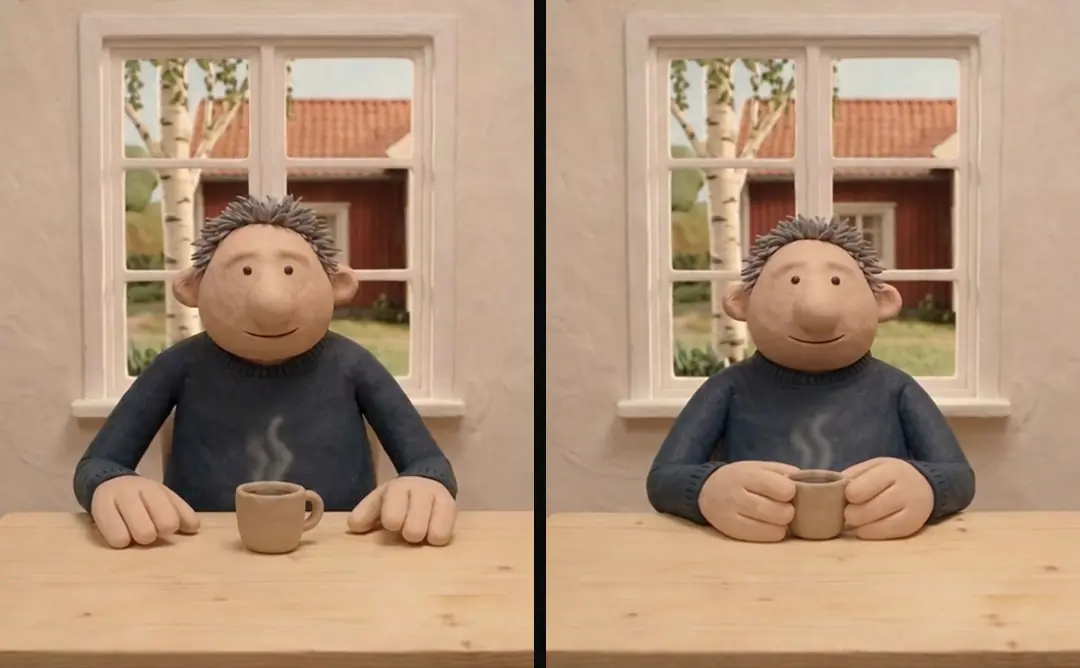
The owned animation frames show different source looks, not a technical before-and-after join. Their usefulness here is editorial: changing styles creates an obvious boundary, so the surrounding action and narration need a clear relationship. Inspect a frame before and after the cut, then play the interval with sound. Decide whether the second shot completes, explains, or contrasts with the first.

Write UGC scripts that sound spoken covers writing spoken lines that form complete thoughts. Use those thought boundaries when selecting narration ranges. Why AI ads feel uncanny: the details to inspect addresses artificial-looking movement and presentation; trim an unstable generated interval only when the retained action still makes sense. A shorter clip that hides the defect but removes the action’s result may fail the ad’s purpose even if the concat operation succeeds.
Check synchronization and output duration
Compare the expected sum of retained ranges with the output duration. Include planned transitions or overlaps in that calculation. Then decode the completed file and listen at every join. Check the first spoken consonant, the last word, and any sound tied to visible contact. A timestamp reset cannot restore material that the source range already excluded.

Our Turntake’s production workflow production process treats the rendered file as the acceptance evidence. File existence is insufficient: an interrupted job can leave an incomplete output, and a completed job can render the wrong length. Keep the candidate in a temporary location until duration and decoding checks pass. Copy or label it as accepted only after reviewing the actual boundary behavior and ending.
- TechniqueStream copyReview consequenceConfirm seek boundaries and compatible streams
- TechniqueTrim and encodeReview consequenceInspect the exact retained action and audio
- TechniqueTimestamp resetReview consequenceEstablish where the retained segment begins
- TechniqueConcatenationReview consequenceJoin prepared related streams and review boundaries
Verify every crop and ending
Adapt video ads to new aspect ratios shot by shot explains adapting the ad to different aspect ratios. When those versions are rendered separately, inspect their joins separately too. A graphic or crop change can alter the visible boundary even when source time ranges are identical. Record the output identifier for each accepted version so review notes cannot drift between similarly named portrait and square files.
Check the last frame, the final audio sample region, and any intended pause after the narration. If the export extends beyond the content, identify whether the recipe requested that duration or whether assembly introduced it. If it stops early, inspect the source endpoints and output duration controls. Repeating the same render without changing the diagnosed cause provides little new evidence.
Make the recipe repeatable
Store source IDs, trim ranges, filter order, stream mapping, output settings, and the accepted file reference together. Preserve the logs needed to understand a failure without treating every warning as a fatal error. When a revision changes a range, regenerate the output from the recipe and recheck that boundary rather than modifying an already compressed intermediate through an undocumented extra step.
A small two-segment render is a useful first check when the inputs or join route change. Confirm its picture, sound, and duration before assembling the full ad. The lasting value is a reproducible relationship between intended ranges and reviewed output. That makes future timing edits understandable to another editor and reduces reliance on a command copied without its source assumptions.
Who wrote this We made the ads first, for SmartSolar in Denmark, Sweden and Ireland. Then we built Turntake. Where Turntake comes from
FAQ
Why can a stream-copy cut start in the wrong place?
Input seeking may land at a preceding seek point. FFmpeg documents different handling during transcoding and stream copy, which can preserve excess material. For a precise boundary, use an appropriate decode-and-trim route and inspect the actual first retained frames.
Why use setpts after trim?
Trim selects the retained video interval but does not reset its timestamps. Resetting timestamps makes the resulting segment begin from zero for assembly. Audio needs corresponding treatment with atrim and asetpts so the related streams keep a clear shared timeline.
Can the concat filter fix incompatible clips?
Do not assume it performs all required normalization. Prepare matching stream counts and compatible media properties, and make each segment start at timestamp zero. The join operation connects prepared segments; the recipe must still specify how differences in the inputs are resolved.
How do I verify the final joined file?
Confirm expected duration, decode the full output, and inspect frames and audio around each join. Review the last picture and sound as well. A command finishing without an error does not establish that the chosen source ranges or editorial boundaries were correct.
Sources
- FFmpeg: filters documentation checked 11 October 2026
- FFmpeg: command-line documentation checked 11 October 2026
Facts from the sources below were checked on the date shown. Pages change, so read the source again before you rely on it.